


zeroheight API x Raycast extension

Building “Quick Access for zeroheight”
The zeroheight API provides opportunities to create new experiences, we can get page content out of zeroheight and surface our design system documentation in new places. That’s precisely what I wanted to do with a tool I use every day — Raycast.
What does the extension do with the zeroheight API?
“Quick Access for zeroheight” is a Raycast extension that pulls page content from zeroheight and displays it. You can see your styleguides, dig down into specific pages, and see your design system documentation without ever opening your browser.
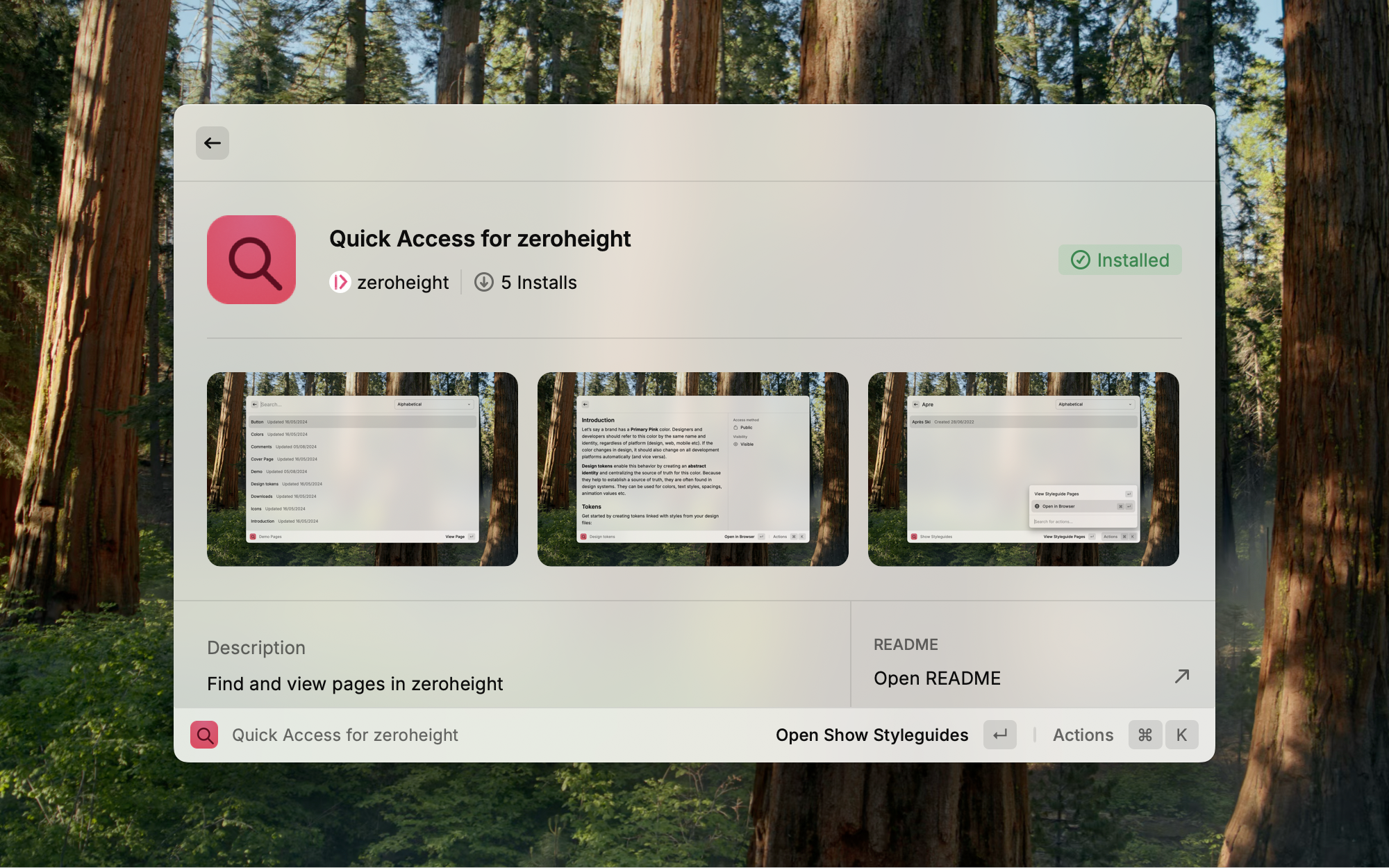
Why build a Raycast extension?
I use Raycast multiple times a day. It’s a replacement for Spotlight on macOS; the little search bar you can access from anywhere. It’s instinctual for me to use CMD+Space to bring up a search bar where I can open apps, check my schedule, manage window layouts, control music, etc. Everything is right there.
Raycast and how it works
Spotlight is useful, but it’s limited in what it can do. There’s Alfred which is great for making workflows to automate things you do every day, but Raycast fills the sweet spot for me. It’s easy to use while also being very extensible (the reason I was able to do this at all). It's the perfect tool that’s got a lot of depth! I found my myself relying on it more and leveraging more of its features over time. It's a massive time-saver.
How I use it daily and possibilities
Some of the extensions I use daily are tied to tools we use at zeroheight.
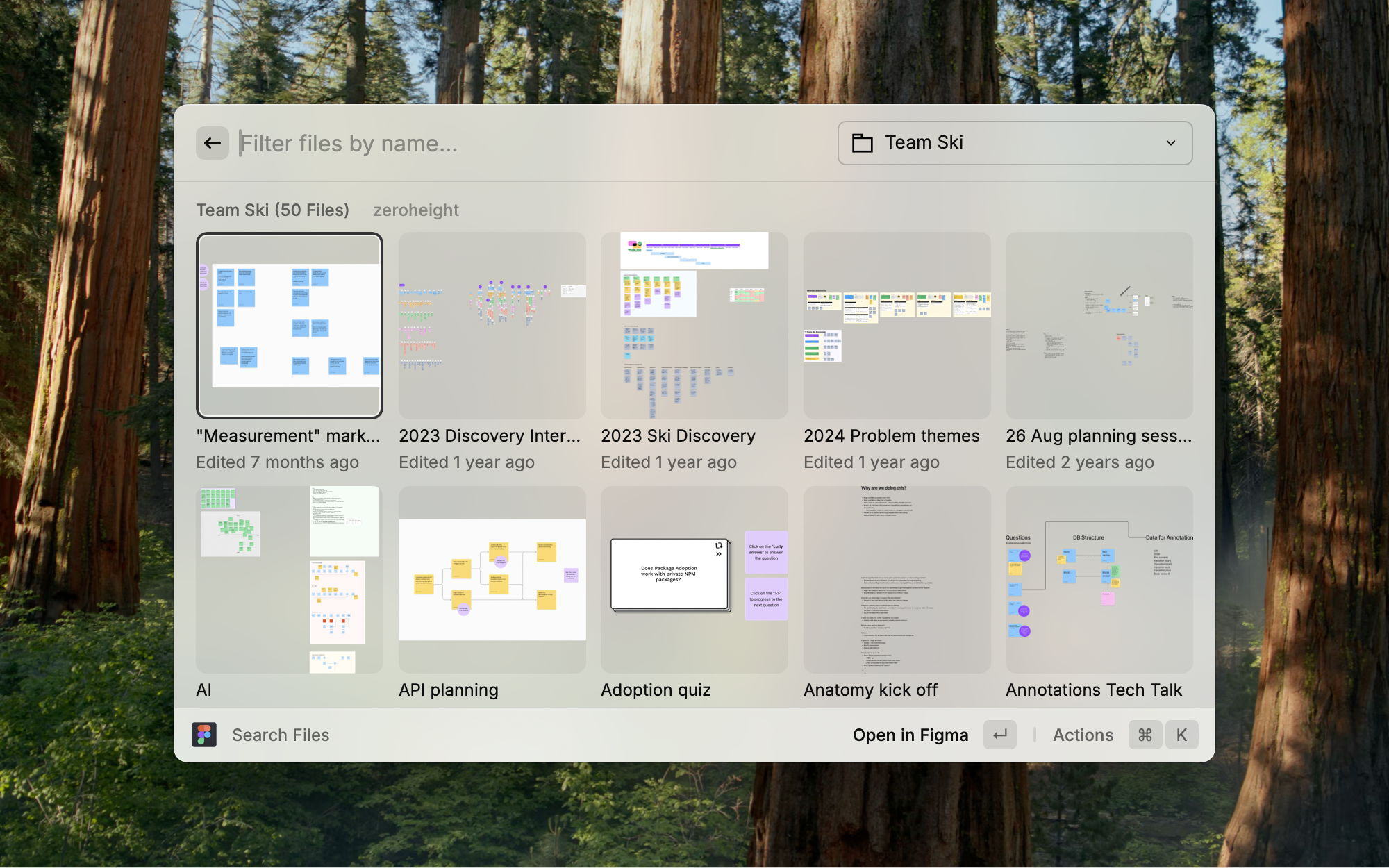
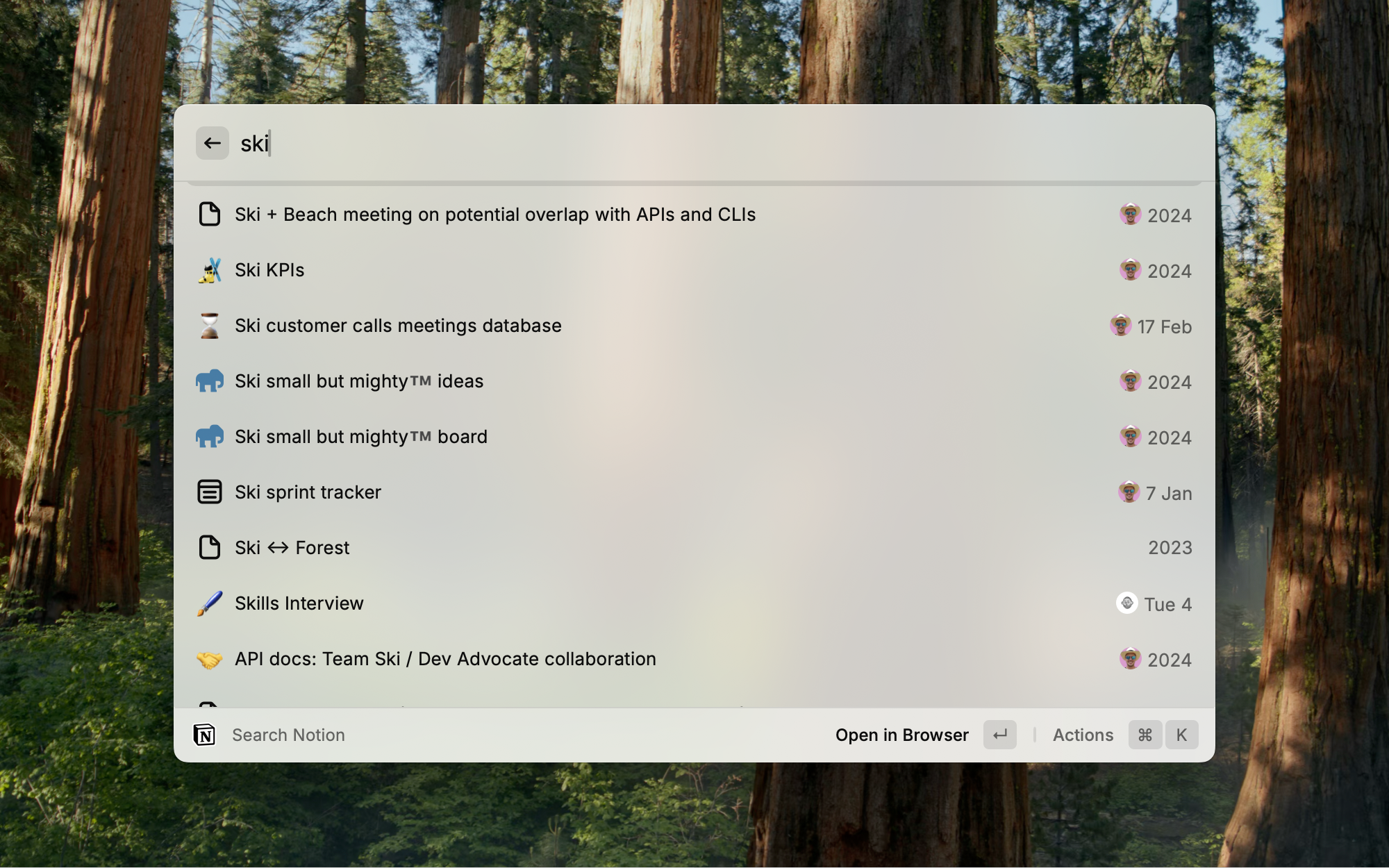
Many tools you might use daily have extensions on Raycast, so, why not do the same for zeroheight? Raycast is an opportunity to break out of the browser window and offer something a bit different. We can show content on more surfaces than just a browser tab, let’s look at how I brought zeroheight to the desktop.
Making a Raycast Extension for zeroheight
Creating the extension
How do you create an extension for Raycast? Use Raycast, of course. The initial setup provides a streamlined UI for defining all the metadata for your extension and the commands you want to provide to users.
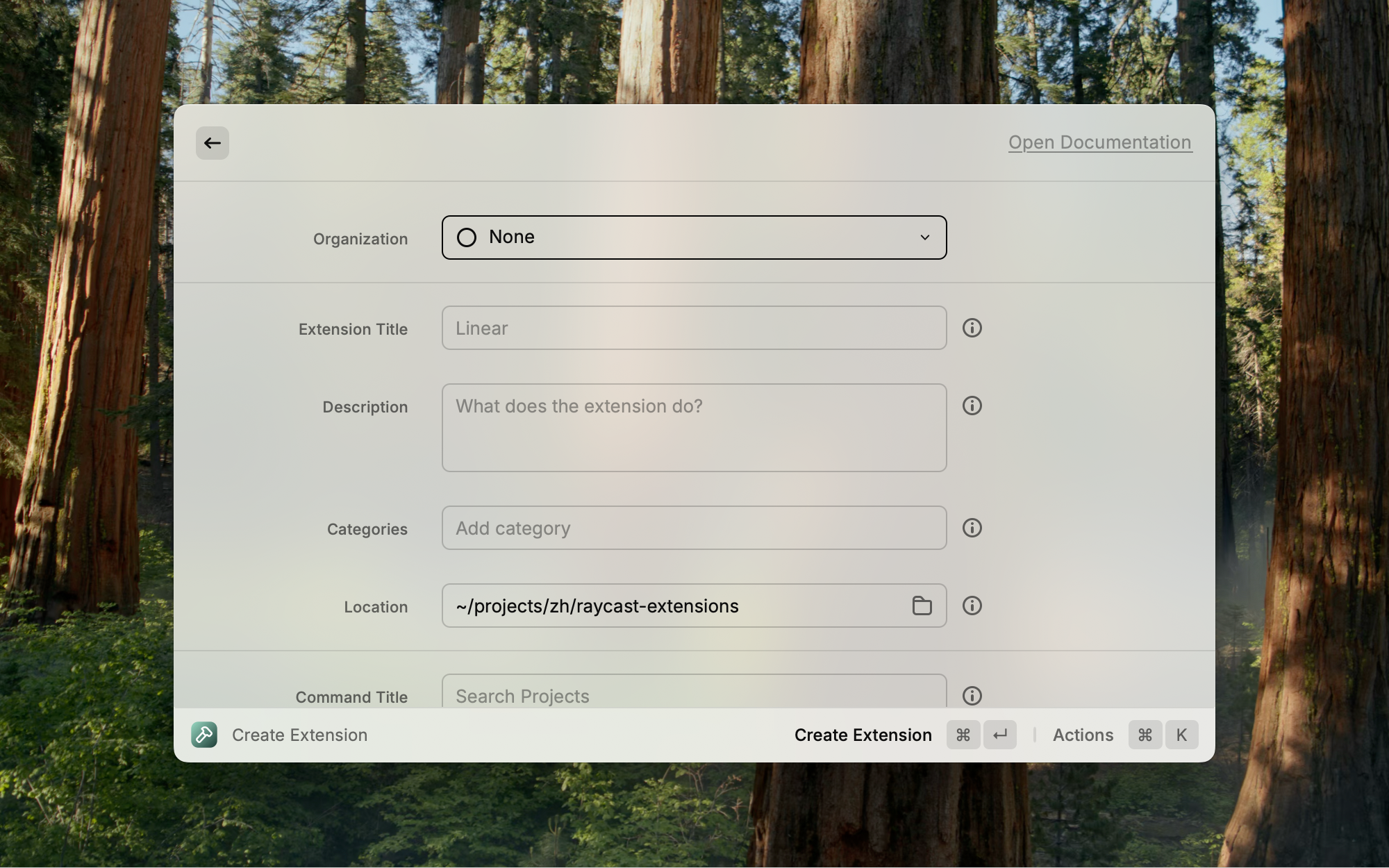
Extensions like GitHub, for example, provide many commands to create, view and search:
- Create Issue
- My Pull Requests
- Search Repositories
- Notifications
Each command does a very specific task and is distinct, so you can find it when you’re searching in Raycast.
For our extension, we’re just focusing on being able to show styleguides and pages, but it leaves the door open for adding new commands later.
Handling authentication
A core concern every application must deal with is authentication. Our extension uses the zeroheight API which relies on a Client ID and an Access Token which we need before the extension can do anything. Luckily for us, Raycast makes it easy to show a consistent UI to end-users. Here’s how we extend our package.json to tell Raycast what we require for our extension.
{
  "preferences": [
    {
      "title": "Client ID",
      "name": "clientId",
      "description": "Client ID generated in the Organization -> Developers section",
      "type": "textfield",
      "required": true,
      "placeholder": "zhci_*****ABCDE12345"
    },
    {
      "title": "Access token",
      "name": "accessToken",
      "description": "Access token generated in the Organization -> Developers section, keep this secure.",
      "type": "password",
      "required": true,
      "placeholder": "zhat_*****ABCDE12345"
    }
  ]
}
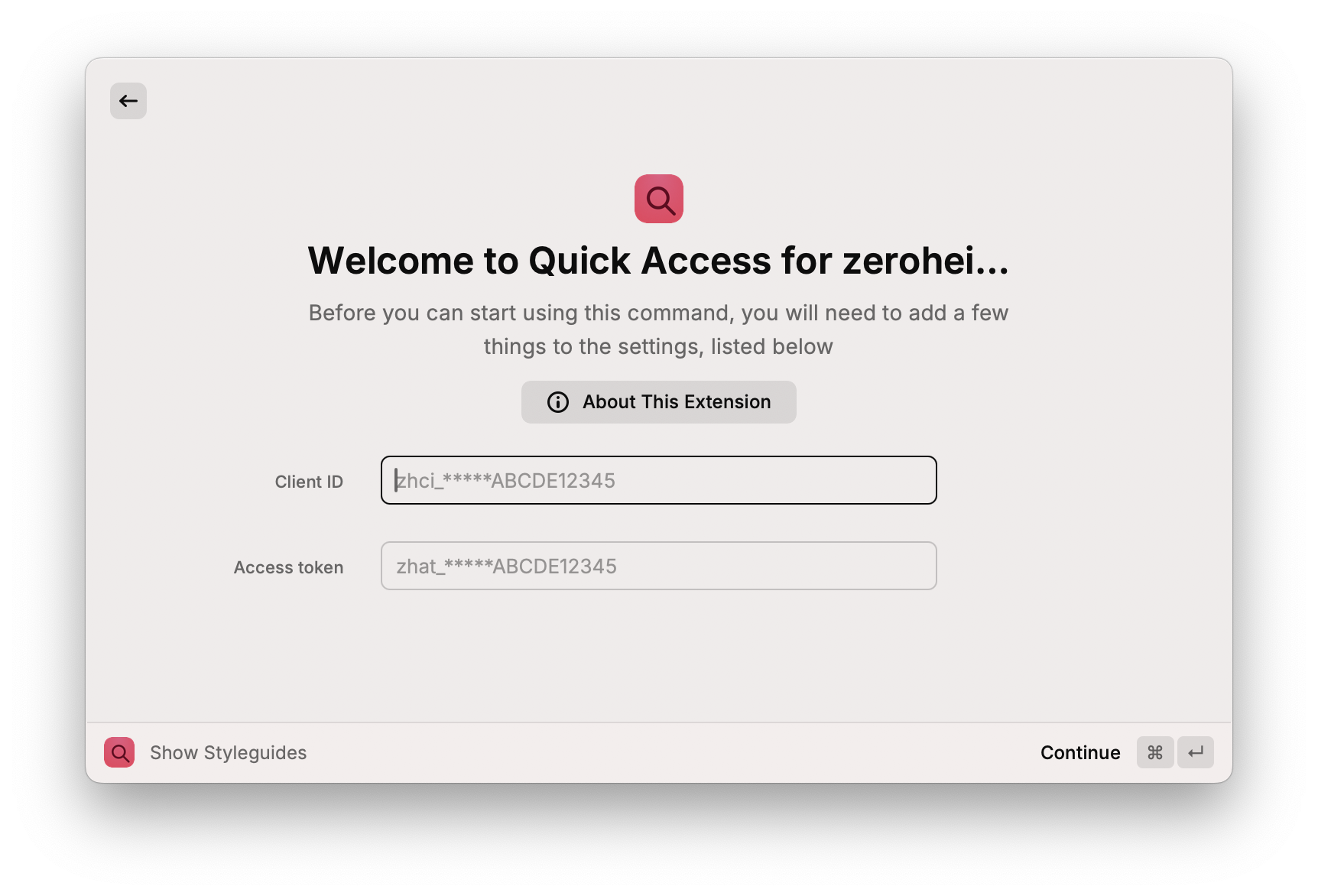
And here’s how it looks, we didn’t need to make any custom UI. We just provide enough metadata so Raycast can decide what to do. The cool thing about this is that if Raycast decides to update their UI, our extension will come along with it and always look consistent with other extensions.
Displaying a list of Styleguides
One of the core domain models in zeroheight is the styleguide. It’s a way to organise your design system documentation and contains all the categories and pages. We’re not going to go through every detail of how the extension gets the list of styleguides, instead let’s go on a whistle-stop tour and highlight some key features.
Calling the zeroheight API
All the logic for getting the styleguide list is bundled into a hook.
export function useStyleguideList() {
  const { clientId, accessToken } = getPreferenceValues<Preferences>();

  const props = useFetch<StyleguideListResponse, StyleguideListItemData[], StyleguideListItemData[]>(
    BASE_URL + "/styleguides",
    {
      method: "GET",
      headers: getAuthHeaders(clientId, accessToken),
      keepPreviousData: true,
      async onError(e) {
        if (e.message === "Unauthorized") {
          await showFailureToast(e, {
            title: "Credentials are invalid",
            message: "Try updating your Client ID and Access Token in the extension settings.",
          });
        } else if (e.message === "Forbidden") {
          await showFailureToast(e, {
            title: "Unable to list styleguides",
            message: "Ensure you have generated a token with the correct scopes.",
          });
        } else {
          await showFailureToast(e, {
            title: "Failed to get styleguide list",
            message: "Please try again later",
            primaryAction: {
              title: "Reload styleguide list",
              onAction(toast) {
                props.revalidate();
                toast.hide();
              },
            },
          });
        }
      },
      mapResult(rawResponse) {
        const styleguides = rawResponse.data.styleguides.map((styleguide) => {
          const createdAt = parseDate(styleguide.created_at);
          return {
            ...styleguide,
            name: styleguide.name ?? "Untitled styleguide",
            humanCreatedAt: createdAt?.toLocaleDateString(),
            createdAt: createdAt,
          };
        });

        return {
          data: styleguides,
        };
      },
    },
  );

  return props;
}
Here are a few interesting features:
getPreferenceValuesgets the preferences we specified in ourpackage.jsonso in our case we can pull out the Client ID and Access Token so we can send it without or fetch request to zeroheight.useFetchis a hook that the@raycast/utilspackage provides; it adds some superpowers to fetch so we can perform some common things like handling errors, caching and transforming the data.showFailureToastis also from the@raycast/utilspackage and it can be used to communicate failure to the user within the Raycast UI. Similar to the preferences, we don’t have granular control over how it looks, instead we just provide enough information and Raycast determines what it looks like.
List UI
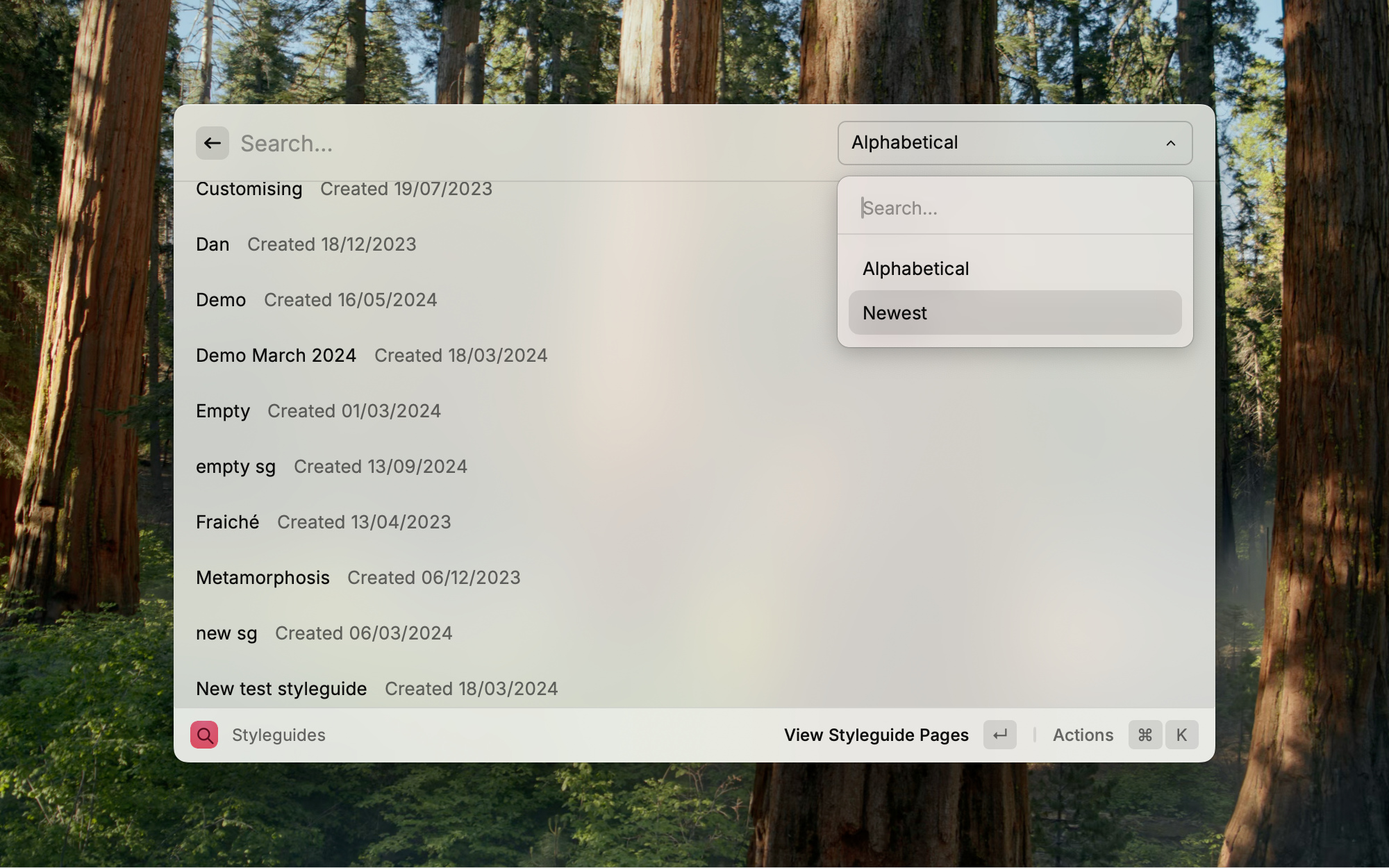
Eagle-eyed readers (especially React developers) might have noticed some familiar patterns. Raycast extensions use React but not in the way you might expect. If you’re coming from the web world, you’ll be used to making a lot of granular UI decisions, but Raycast extensions take a different approach. Let’s have a look at a snippet that uses the List component to see it in action.
<List
  navigationTitle="Styleguides"
  isLoading={isLoading}
  searchBarAccessory={
    <List.Dropdown
      tooltip="Order the list of styleguides"
      onChange={(newSortingMethod) => {
        setSorting(newSortingMethod);
      }}
    >
      <List.Dropdown.Item title="Alphabetical" value="name" />
      <List.Dropdown.Item title="Newest" value="created_at" />
    </List.Dropdown>
  }
  actions={
    <ActionPanel>
      <Action title="Reload" onAction={() => revalidate()} />
    </ActionPanel>
  }
>
  {sortedStyleguides.map((styleguide) => (
    <List.Item
      key={styleguide.id}
      title={styleguide.name}
      subtitle={`Created ${styleguide.humanCreatedAt}`}
      actions={
        <ActionPanel>
          <Action.Push
            title="View Styleguide Pages"
            target={<StyleguidePageList styleguideId={styleguide.id} styleguideName={styleguide.name} />}
          />
          <Action.OpenInBrowser url={`https://zeroheight.com/${styleguide.share_id}`} />
        </ActionPanel>
      }
    />
  ))}
</List>
A List has a few different properties that impact the way it works, but not what it looks like. Here are the highlights:
isLoadingwill show a built-in loading state while data is fetchedsearchBarAcessoryallows for a control to be shown next to the search bar — a dropdown for sorting in our case.actionscan be defined which apply to the whole list like reloading data
An individual List.Item can have actions which apply to that specific item, in our case that’s the styleguide so we can, we define two actions:
- The
Action.Pushcomponent does navigation and because it’s first in theActionPanel, it will trigger when active and the user presses Enter. Action.OpeinInBrowseris a secondary action you can bring up the full menu with CMD+K by default; this action opens the styleguide in your default web browser.
This pattern for listing styleguides is reused in the extension to show individual pages too. There’s one other piece of the puzzle to make this extension useful, we need to be able to view the pages without leaving Raycast.
Showing Markdown page content
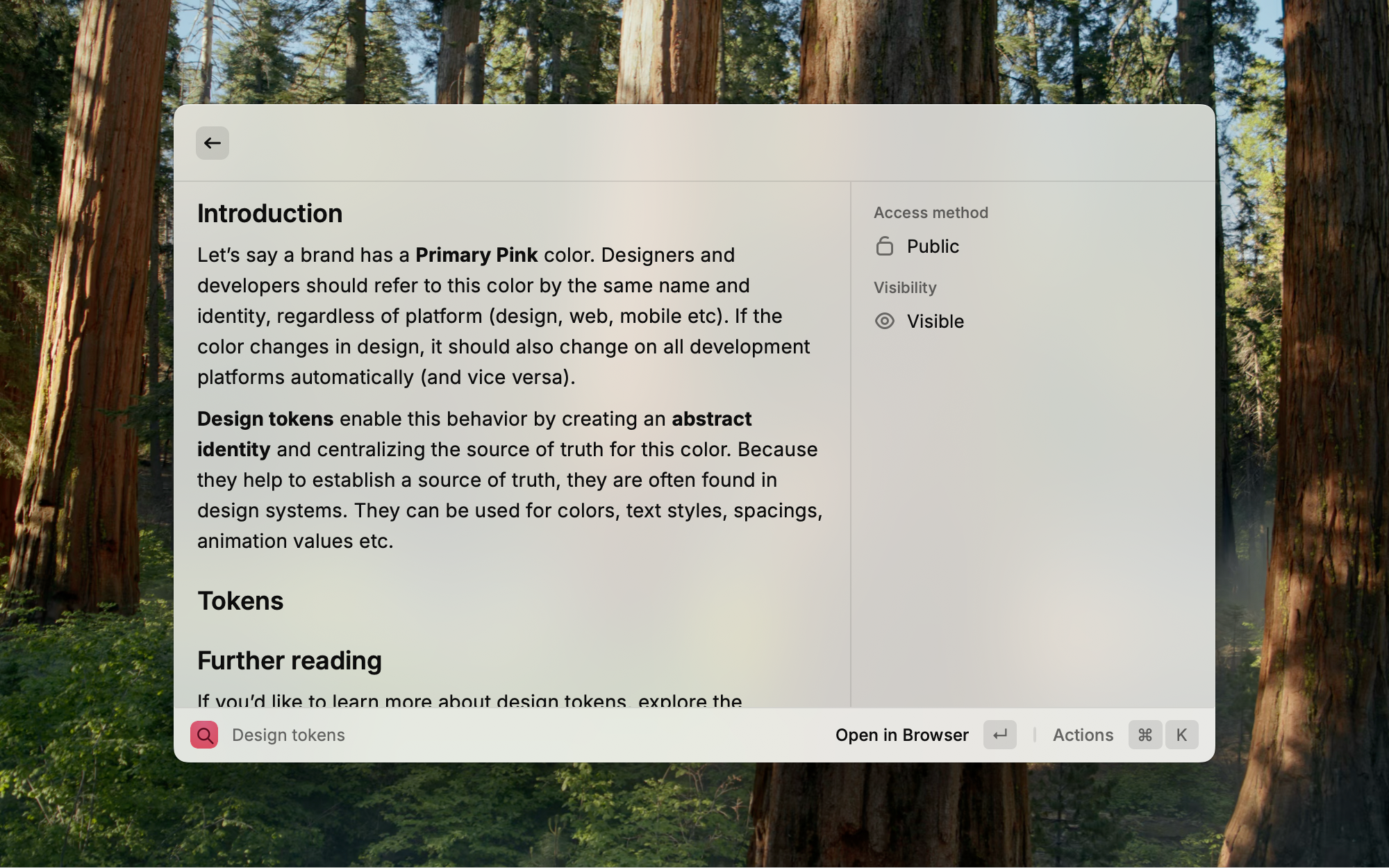
The zeroheight API supports getting page content in Markdown format. This is a simple format that is supported by countless different tools and has become a ubiquitous format for software engineers especially. It’s so popular, in fact, that Raycast supports rendering it out of the box.
Let’s see how we did it.
How to show markdown
Here’s the whole StyleguidePage component to render the page content.
export function StyleguidePage( pageId : StyleguidePageProps) {
  const { data, isLoading, revalidate } = usePage(pageId);

  return (
    <Detail
      navigationTitle={data?.name ?? "Page"}
      isLoading={isLoading}
      markdown={data ? getContentOrDefault(data) : ""}
      metadata={
        data &&
        !isContentEmpty(data) && (
          <Detail.Metadata>
            <Detail.Metadata.Label
              title="Access method"
              text={data.locked ? "Private" : "Public"}
              icon={data.locked ? Icon.Lock : Icon.LockUnlocked}
            />
            <Detail.Metadata.Label
              title="Visibility"
              text={data.hidden ? "Hidden" : "Visible"}
              icon={data.hidden ? Icon.EyeDisabled : Icon.Eye}
            />
            <StyleguideStatusTagDetailMetadataLabel pageId={pageId} />
          </Detail.Metadata>
        )
      }
      actions={
        <ActionPanel>
          {data && <Action.OpenInBrowser url={data.url} />}
          <Action title="Reload" onAction={() => revalidate()} />
        </ActionPanel>
      }
    />
  );
}
Here are some key highlights of the Detail component that Raycast provides:
markdowncan be passed directly as a prop, nice and easymetadatacan be used to show some additional information in a side panel, we use this to show visibility, authorization and status of the page.actionsjust like the other components, we can perform actions on a page, so in this case we can view the styleguide page in the browser.
Wrapping up
Raycast is a tool I love and something I use every day, which is why I wanted to create an extension. It seemed like a fun way to leverage the zeroheight API to make a new experience that I can benefit from, and now you can too!
If you have no interest in using Raycast, that’s fine too. Think about the tools you can’t live without and if they allow add-ons, extensions, and plugins — consider how you can make your own tools to bring your design system documentation to different contexts. Quick Access for zeroheight is a simple showcase of how to use the API in isolation, but there’s a lot of potential to make tools just for your business.
I hope this sparks some ideas on how you could combine content from zeroheight with data and insight from other tools to craft something more relevant and more personalised to you.